 Ask Romel
New to AI? Start here. The guide I send every beginner.
Start free, run one prompt tonight, make it remember you this week, and pay only when you hit a wall.

I keep getting asked the same question: “What would you recommend for someone just starting?”
This is my answer, written once so I can send it to you. It assumes you’ve never used an AI tool. It takes about 10 minutes to read and one evening to try. Everything here works on the free plan unless I say otherwise.
As of November 2026. Tools change often, so I date anything that might move.
The short answer
- Today: make a free Claude account and leave the model on Sonnet.
- Tonight: run one prompt about your own week. It takes 5 minutes.
- This week: set Claude up to remember you, then do one small thing a day for 7 days.
- Later: pay only when you hit a wall.
The rest of this article walks through each step.

First, what AI actually is
The AI in this guide is a chat assistant. You type a message in plain words, like you’d text a smart friend, and it writes back. It can draft an email, plan a week, explain a bill, compare options or turn your notes into a checklist.
Two things to know before you start:
- You don’t need special words. If you can describe the job to a person, you can describe it to Claude.
- It can be wrong. It sounds sure even when it isn’t. Check names, dates, prices and anything you’re going to act on.
You don’t need anything fancy to start. You need one good prompt.
Step 1: Get set up (today, 5 minutes)
- Go to claude.ai, or get the Claude app on your phone or computer. Make a free account.
- Find the model name near where you type. Leave it on Sonnet. It’s a good everyday pick for writing, email and plans.
- Know your limit. Every plan has one. On the free plan it resets every five hours. If you hit it, wait for the reset.
A few words you’ll see:
- Prompt: the message you type to Claude.
- Chat: one conversation. Claude remembers everything said earlier in the same chat.
- Sidebar: the menu down the left side.
Step 2: Run one prompt (tonight, 5 minutes)
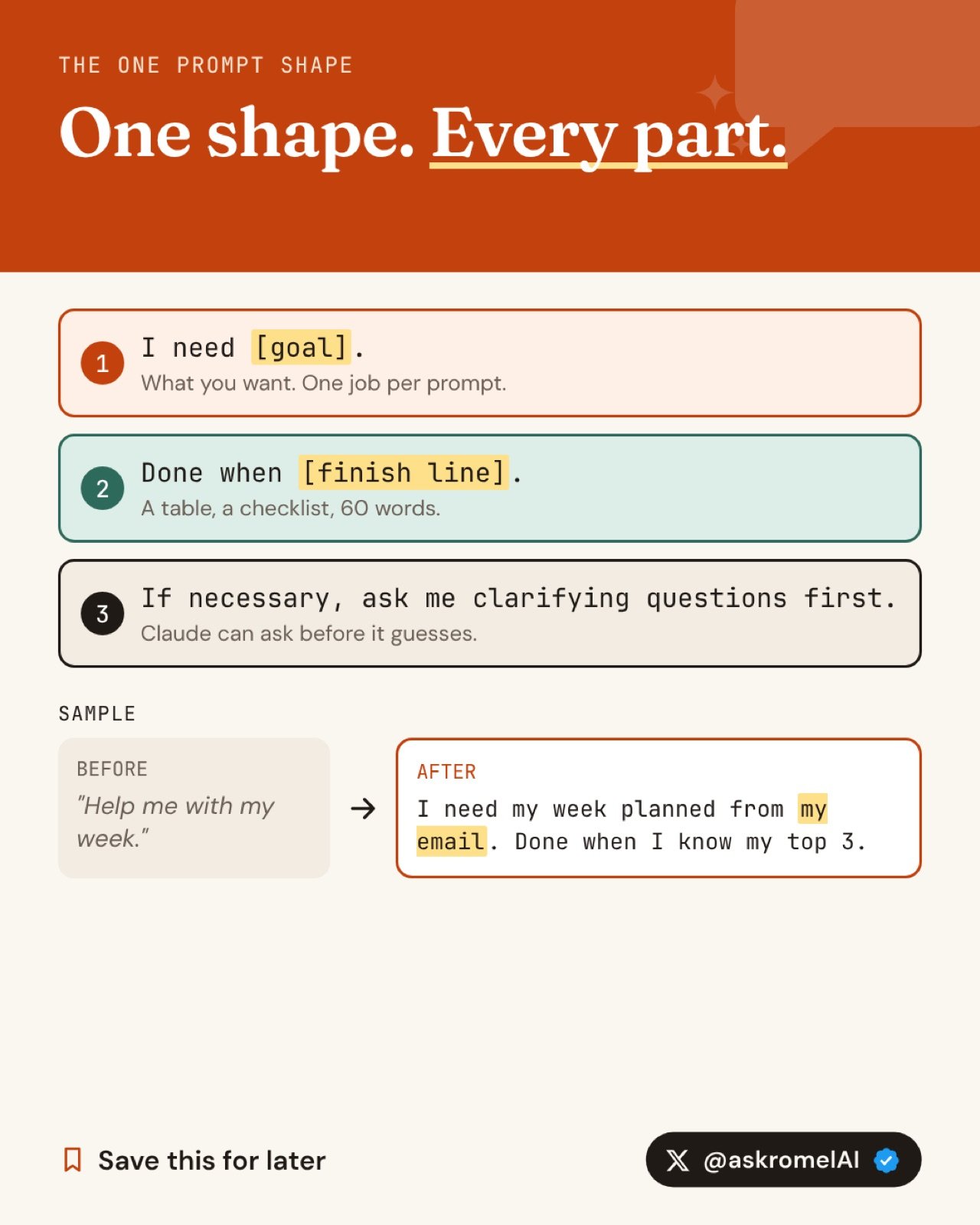
Most good prompts have the same shape. Say what you want, and say what “done” looks like.
I need [goal]. Done when [finish line].
The finish line is the part beginners skip, and it’s the part that makes the answer useful. “Help me with my week” gets you general tips. This gets you a plan:
I need my week planned from [my email and calendar]. Done when I know my top 3. If necessary, ask me clarifying questions first.
You don’t have email connected yet, so paste in the 10 things on your mind instead. Bills, school forms, work deadlines, appointments. Claude will sort them, tell you the top 3 and say what it assumed.
Then keep going in the same chat. Say “make it shorter”, “put it in a table” or “move the dentist to Friday.” You’re having a conversation, so you don’t have to get it perfect the first time.
Step 3: Three habits that make every answer better
- Give it a finish line. A table, a checklist, 3 bullets, 60 words. Name the shape you want back.
- Stay in the same chat. Follow-ups build on what’s already there. Start a new chat for a new job.
- Check before you act. Look over prices, dates, names and math. Ask “what did you assume?” if something looks off.
Step 4: Make it remember you (this week, about 15 minutes)
This is the step that stops you from typing the same background every time.
Projects are like a folder with its own instructions. Click Projects in the sidebar, then New project. Add 3 to 5 rules (“I work nights”, “keep answers short”) and any files Claude should know. Every chat you start inside that project begins with them. The free plan allows up to 5 projects.
Memory lets Claude save facts from your chats. Check that “Generate memory from chats” is on in Settings. It’s on by default. Say “remember this” to save something on purpose, and open Manage next to your memory to see or delete what it kept.
Try this in a normal chat:
Remember 3 things: I [work nights], I [have two kids], and I want answers [under 100 words]. Done when you list back what you saved.
Step 5: Your first 7 days
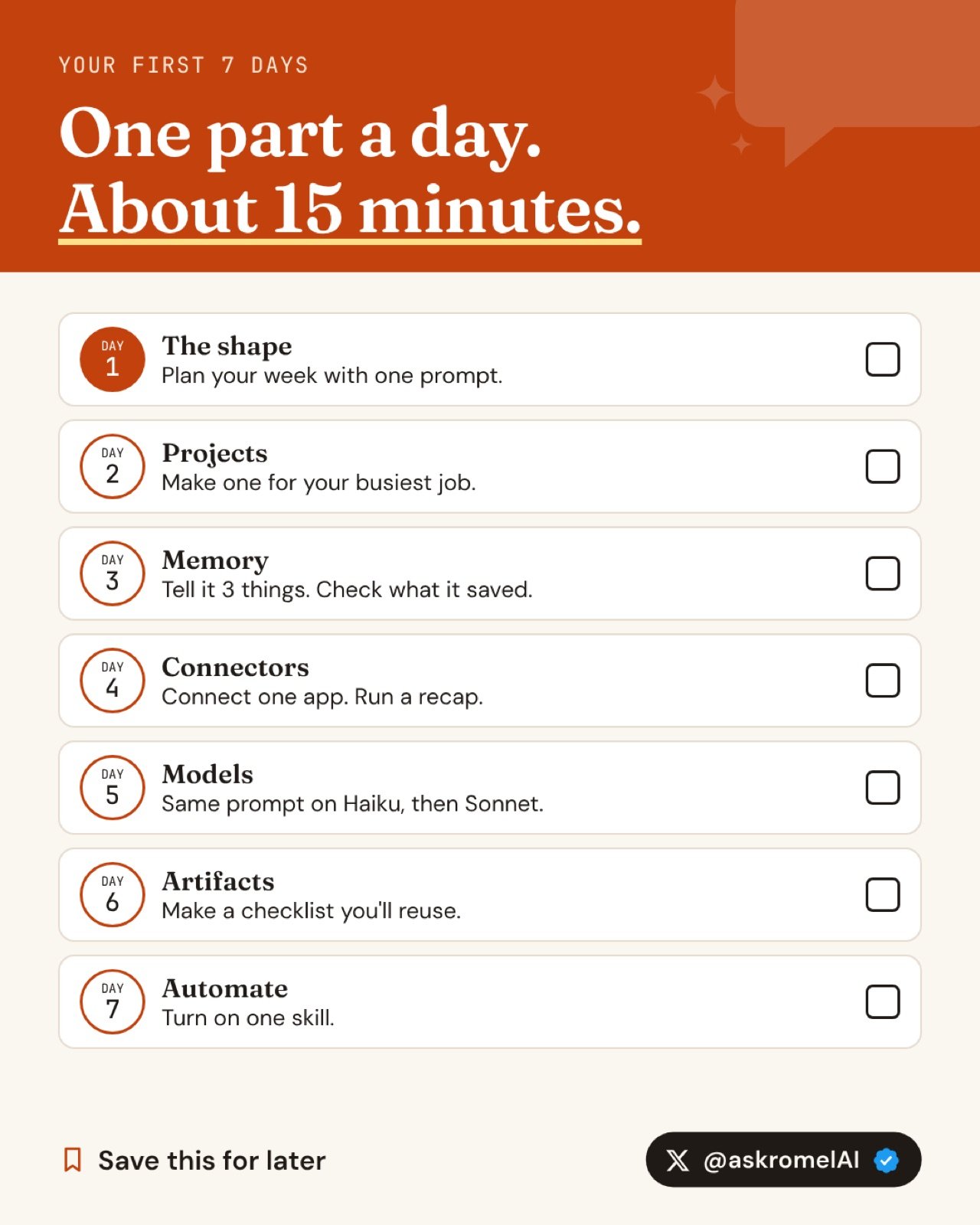
One small thing a day, about 15 minutes each. All of it works on the free plan.
- Day 1: plan your week with the prompt above.
- Day 2: make one project for your busiest job.
- Day 3: tell Claude 3 things to remember, then check what it saved.
- Day 4: connect one app, like Gmail or Google Calendar, and ask for a weekly recap.
- Day 5: run one prompt on Haiku, then the same prompt on Sonnet. Keep the better answer.
- Day 6: ask for a one-page checklist you’ll reuse, like moving, packing or a trip.
- Day 7: switch on one skill (saved know-how Claude uses on its own).
Day 4 in plain words: Click Plugins in the sidebar, then Connectors. Pick an app, click Connect and sign in. Then in a chat, click +, then Connectors, and switch on only the ones you need. Name the source in your prompt: “Search my Gmail for…”
A recap prompt to try once Gmail is connected:
I need a weekly recap of [my inbox and calendar]. Done when it fits one screen and lists what needs a reply.
What to skip for now
You’ll hear about a lot of features. You don’t need them in week one.
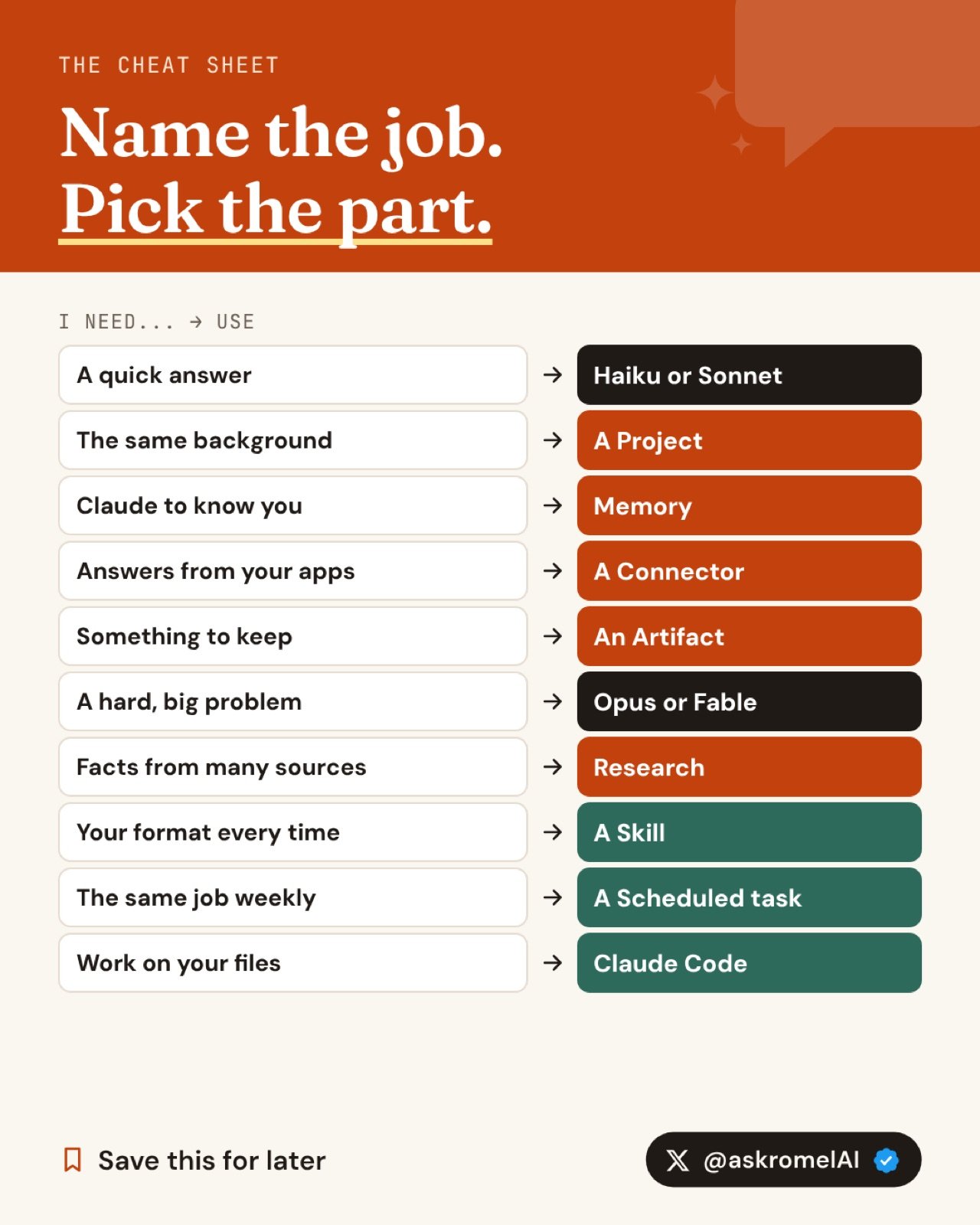
- Fable and Opus: the bigger models. They’re paid, and they use your limit faster. Sonnet is plenty for week one.
- Research: a paid mode that runs many searches and writes a report. Great later.
- Claude Code: works on files on your computer. Paid, and meant for when you’re comfortable.
When to pay
Stay free until one of these happens:
- You keep hitting the usage limit.
- You want Opus for bigger jobs, Research for deep digging, or scheduled tasks that run on a timer.
“Paid” here means a Pro plan or higher. Fable costs extra on Pro.
Six safety rules
- First names are enough. Leave out addresses and health details the task doesn’t need.
- Never paste passwords, ID numbers or account numbers into a chat.
- Switch on only the connectors a chat needs.
- Check prices, dates and facts before you act on them.
- Read every approval before you tap yes.
- For a private question, use an incognito chat.
If something goes wrong
- The answer is vague: add a finish line. “Done when I have a table” fixes most of it.
- Claude forgot something: check that memory is on, and that you’re in the right project.
- Claude can’t see your email: in that chat, click +, then Connectors, and switch Gmail on.
- You hit your limit: wait for the reset. Next time, keep small jobs on Haiku or Sonnet.
- It got a fact wrong: tell it what’s wrong in the same chat. Then check the fix.
When you’re ready for more
I put everything into a free 38-page guide: all 13 parts of Claude in plain words, where to click, 16 copy-ready prompts, a 7-day plan and a cheat sheet. I ran 15 of those prompts for real and put the screenshots in the back, so you can see exactly what comes back.
Download the free 38-page guide (PDF, 12 MB)
Start tonight with one prompt. Then tell me what Claude gave you back. I read every reply.
More like this in the Prompt Vault →
Get one useful AI tip a week. Free.
Plus the Claude Glossary Playbook and every tool on the site, the moment you join.
One email a week. Leave any time.
Check your email
We sent a 6-digit code to . Type it here, or tap the link in the email.
You're in. Here's what happens next:
- Check your inbox. Your ebook and a sign-in link are on the way.
- Open your tools. Every tool is unlocked.
- Day 1 of the start course lands tomorrow morning.